OBS Can’t See Your Scenes. I Fixed That.
OBS FrameBridge — a plugin that gives your Lua scripts eyes inside OBS.
You’ve spent hours setting up your OBS scenes. The gameplay scene. The loading screen. The pause menu overlay. Everything is pixel-perfect — and switching between them manually has become second nature. But deep down, you know it shouldn’t be manual at all.
OBS is smart enough to do this automatically. Except it can’t — because OBS has no way to see what’s happening inside a scene that isn’t currently live.
It’s a blind spot that’s been there since the beginning. And it’s why streamers end up either hitting hotkeys at the wrong moment, or cobbling together workarounds that involve hidden projector windows, external screen-capture hacks, and scripts that break whenever a window gets resized.
There had to be a better way. So I spent a weekend building one.
See the difference
Same stream. Same game. Same OBS setup. The only difference is whether FrameBridge is running.
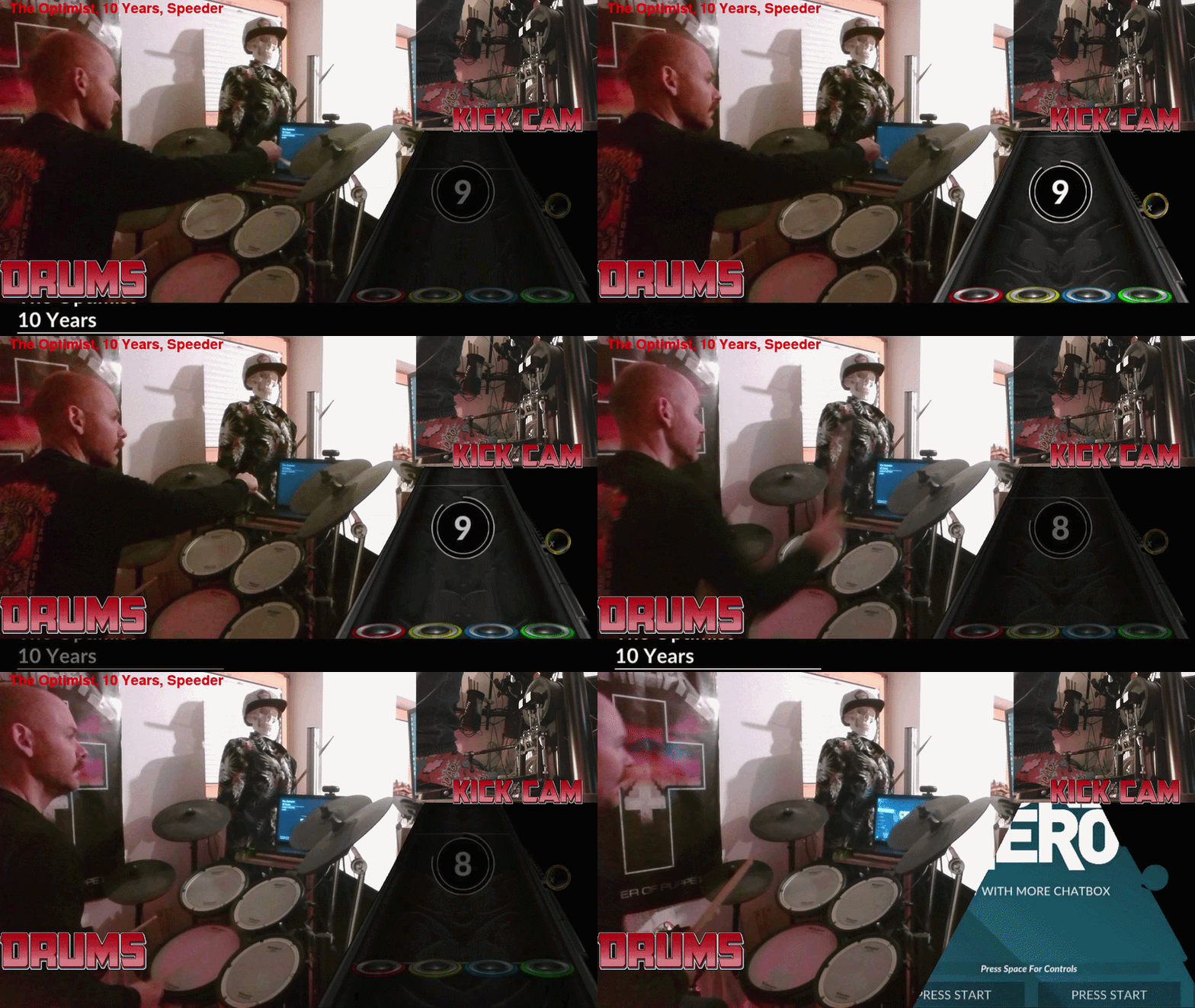
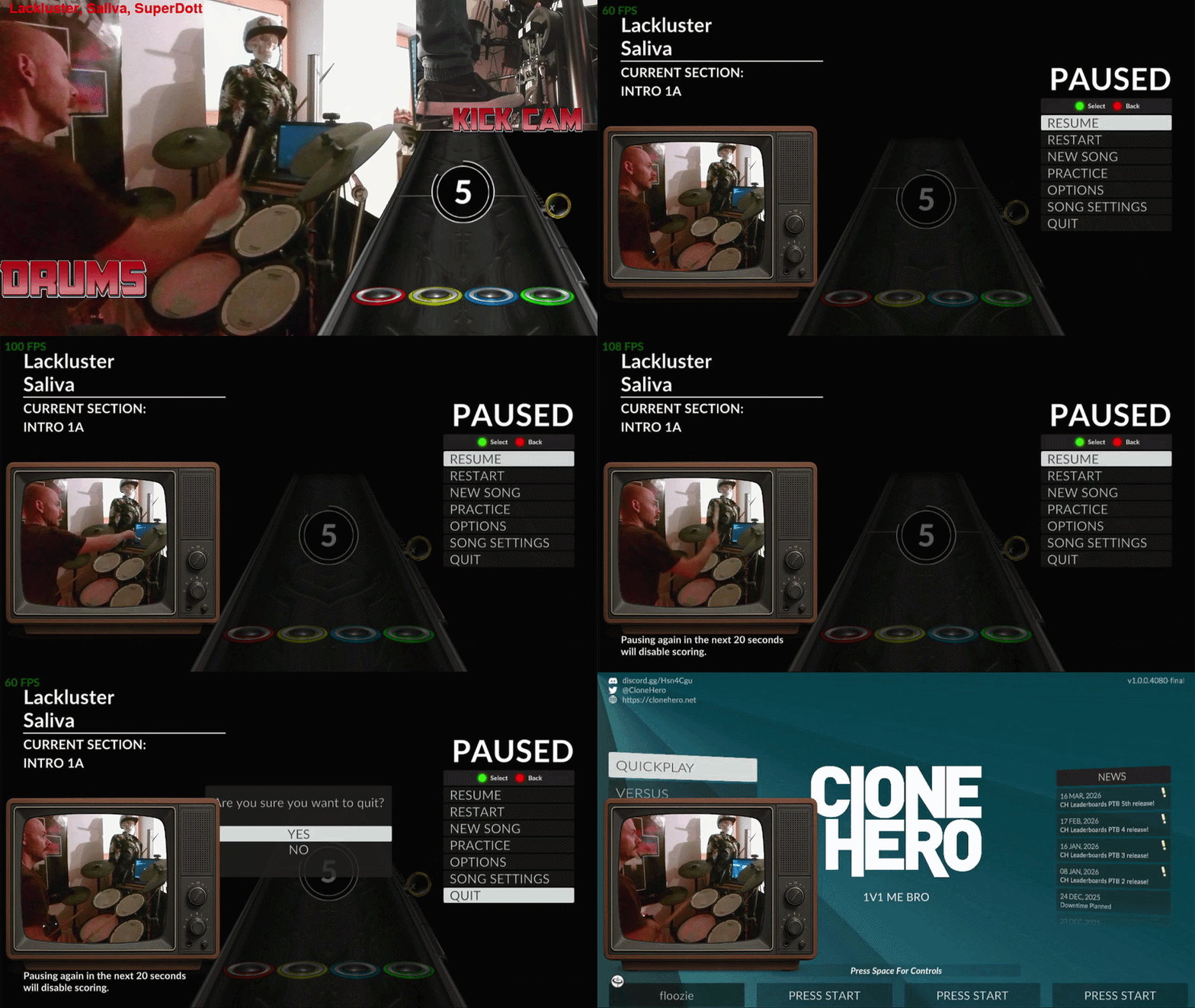
No hotkeys. No manual triggers. No external tools. The script reads the game’s pixel output in real time and switches scenes automatically — exactly when it should.
How it actually works
Every frame, OBS renders your sources to the GPU. Normally that output goes straight to your stream encoder — nothing else can touch it. FrameBridge hooks into that render pipeline and copies the pixel data to a CPU-side buffer that your Lua scripts can query.
OBS Scene  ──GPU──▶  FrameBridge  ──CPU buffer──▶  Your Lua Script  ──▶  Switch Scene ✓
           (render)  (every frame)                  get_pixel()
                                                    avg_color()
                                                    compare_region()
The key thing: it works on any source or scene, whether it’s on-air or not. You can read pixel data from a scene your viewers never see — one you use purely as a state detector. Your actual production output is completely unaffected.
What you can do with it
Automatic scene switching based on game state
Your loading screen is bright. Your gameplay is dark. Your pause menu has a specific color in one corner. FrameBridge reads average luminance or color values from a probe region every 250ms — and your script switches scenes without you touching a thing.
Detecting specific UI elements or in-game overlays
Take a screenshot of your death screen or score reveal once and store it as a reference image. FrameBridge will tell you — with a similarity score from 0.0 to 1.0 — whether that image is currently on screen. React accordingly in Lua.
Rendering off-air scenes to PNG on demand
Need a thumbnail of a scene that isn’t live? FrameBridge can render any OBS scene to a PNG file at any time — useful for automated previews, archiving, or assets your audience never sees directly.
Anything your Lua script can imagine
The API exposes raw RGBA pixel values, region averages, color matching with tolerance, and template similarity. If you can express the logic in Lua, FrameBridge gives it the visual input it needs.
A real working example
This snippet reads the average luminance of a region in your game capture every 250ms and switches between three scenes based on brightness thresholds. Drop it into OBS as a Lua script — adjust the coordinates and scene names for your setup.
obs = obslua

local PROBE = { x=1280, y=810, w=320, h=270 }

local function avg_luminance()
    local cd = obs.calldata_create()
    obs.calldata_set_int(cd, "x", PROBE.x)
    obs.calldata_set_int(cd, "y", PROBE.y)
    obs.calldata_set_int(cd, "w", PROBE.w)
    obs.calldata_set_int(cd, "h", PROBE.h)
    obs.proc_handler_call(obs.obs_get_proc_handler(),
        "framebuffer_avg_color", cd)
    local r = obs.calldata_int(cd, "r")
    local g = obs.calldata_int(cd, "g")
    local b = obs.calldata_int(cd, "b")
    obs.calldata_destroy(cd)
    if r < 0 then return nil end
    return 0.299*r + 0.587*g + 0.114*b  -- perceived luminance
end

local function switch_to(scene_name)
    local src = obs.obs_get_source_by_name(scene_name)
    if src then
        obs.obs_frontend_set_current_scene(src)
        obs.obs_source_release(src)
    end
end

function script_load(settings)
    obs.timer_add(function()
        local lum = avg_luminance()
        if not lum then return end
        if     lum > 42.5 then switch_to("MenuScene")
        elseif lum > 34.0 then switch_to("PlayingScene")
        else                    switch_to("PauseScene")
        end
    end, 250)   -- poll every 250 ms
end
No custom native module loading. No external dependencies in your script. It uses OBS’s own proc_handler interface — the same one OBS uses internally — so it slots into any existing Lua script setup.
No hacks. Seriously.
Every previous solution to this problem involved some form of trickery: hidden projector windows that depend on your desktop resolution, calls to Windows screen-capture APIs from outside OBS, abusing Studio Mode transitions as a roundabout way to render an off-air scene. These approaches technically worked, but they were brittle — one resolution change or monitor rearrangement and everything broke.
FrameBridge hooks directly into OBS’s internal render loop. No external windows. No desktop capture. No undocumented internals. It’s a first-class OBS plugin that does exactly one thing, cleanly.
Get it
FrameBridge is open source (MIT), and installs like any other OBS plugin — copy the DLL and the data folder, restart OBS, load a Lua script.
→ Download latest View on GitHub
Requires OBS Studio 32.0+ · Windows & Linux · MIT License